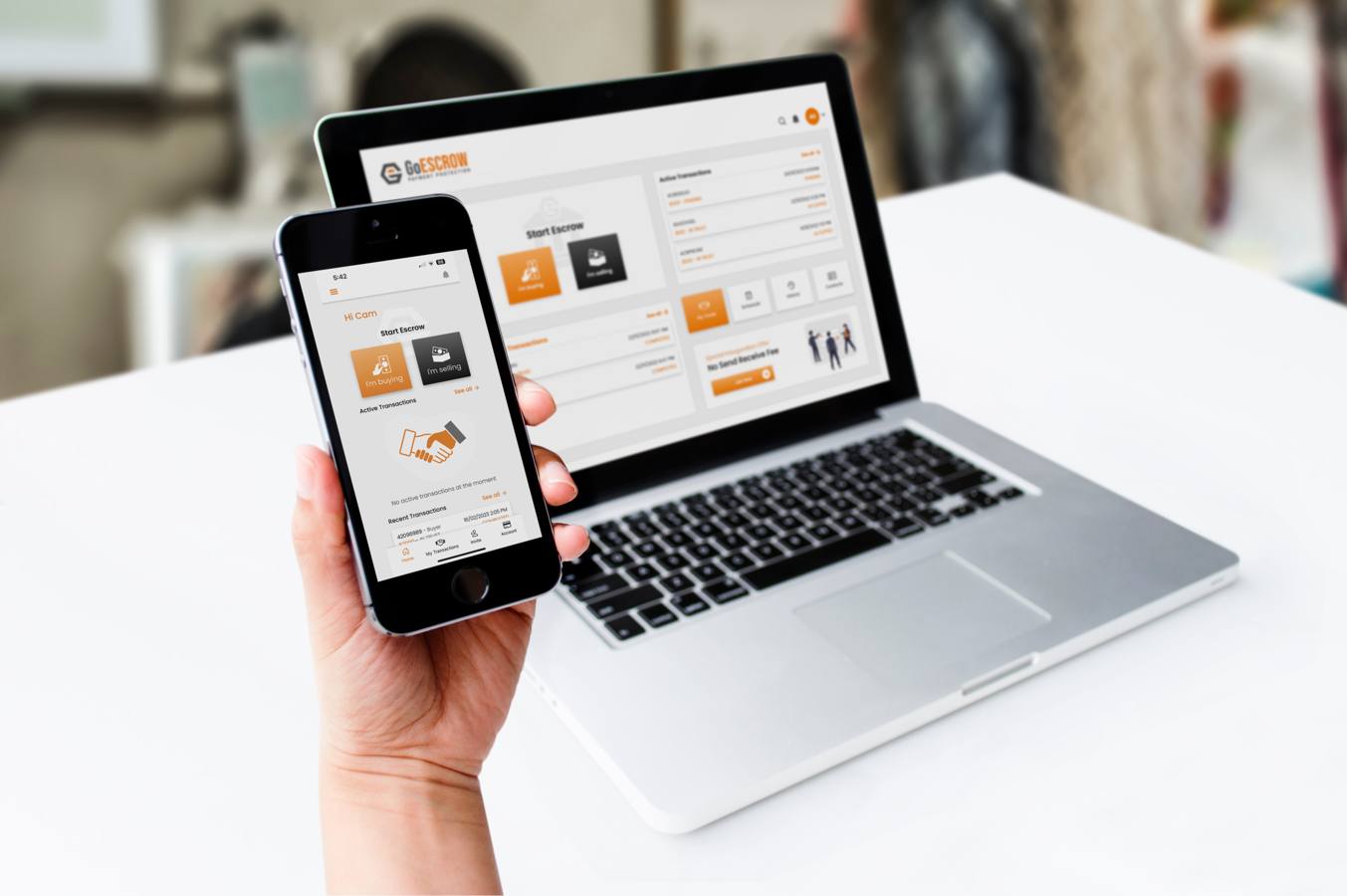
Use your mobile phone to scan an identity document when the GoEscrow identification screen offers this method. Start from Identification Documents or account setup identification.
Prepare your phone and document
 Prepare your phone and document
Have your document ready, use good lighting and ensure your phone has internet access and a working camera.
Complete the mobile verification
 Complete the mobile verification
Step 1
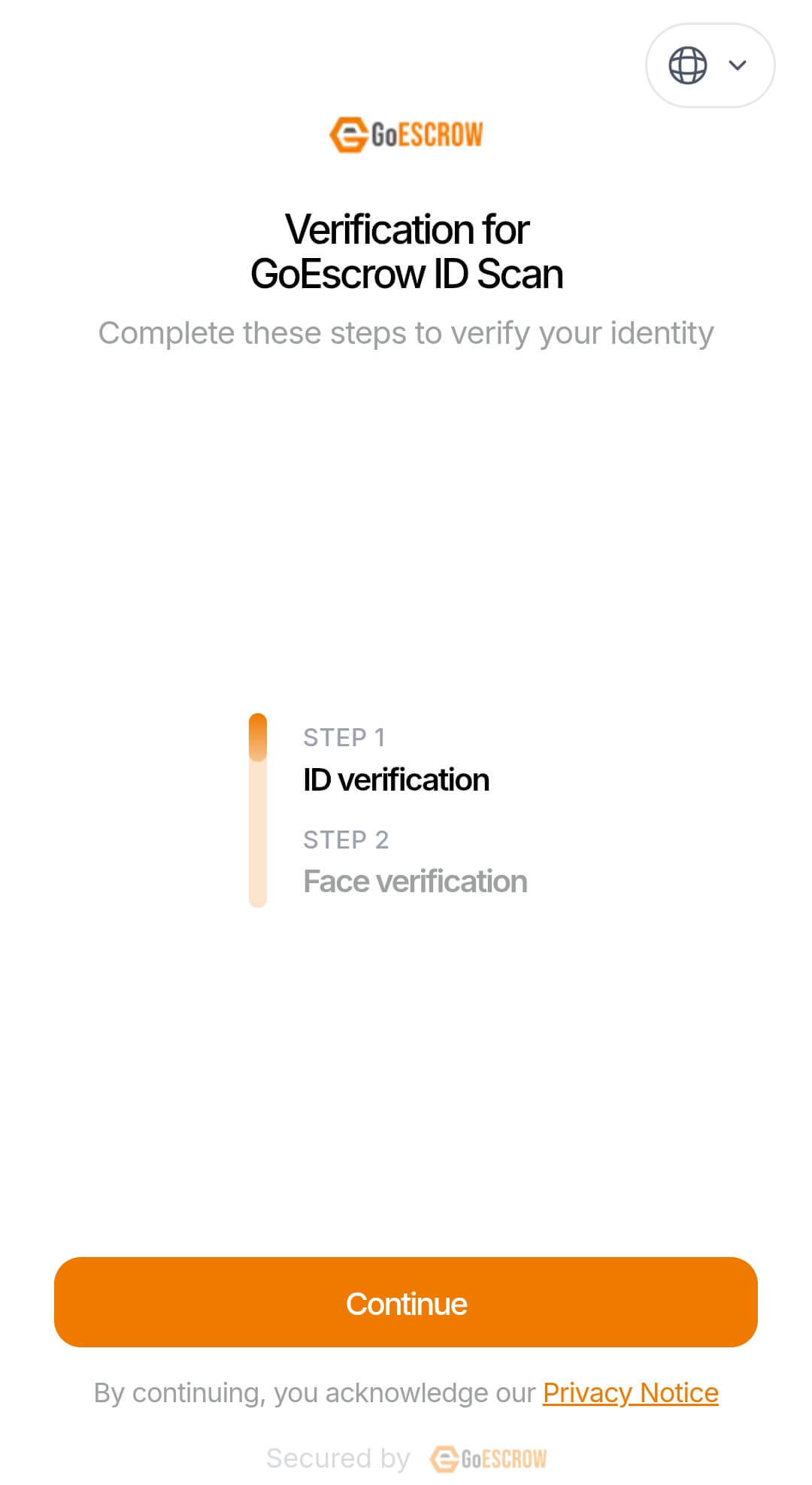
Open the requested verification link and tap Continue.
 Open larger image
Step 2
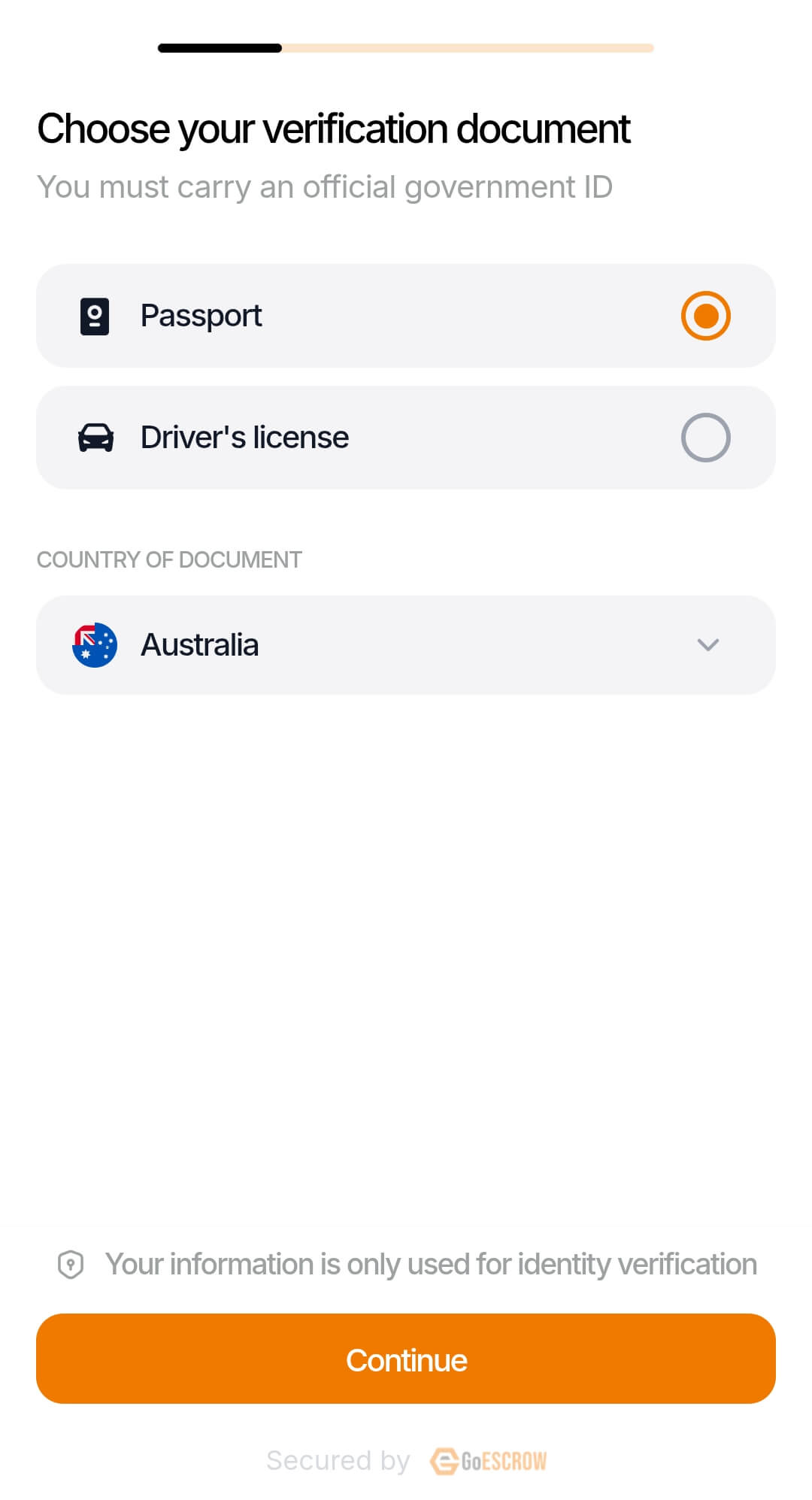
Choose the document type offered by the verification service.
 Open larger image
Step 3
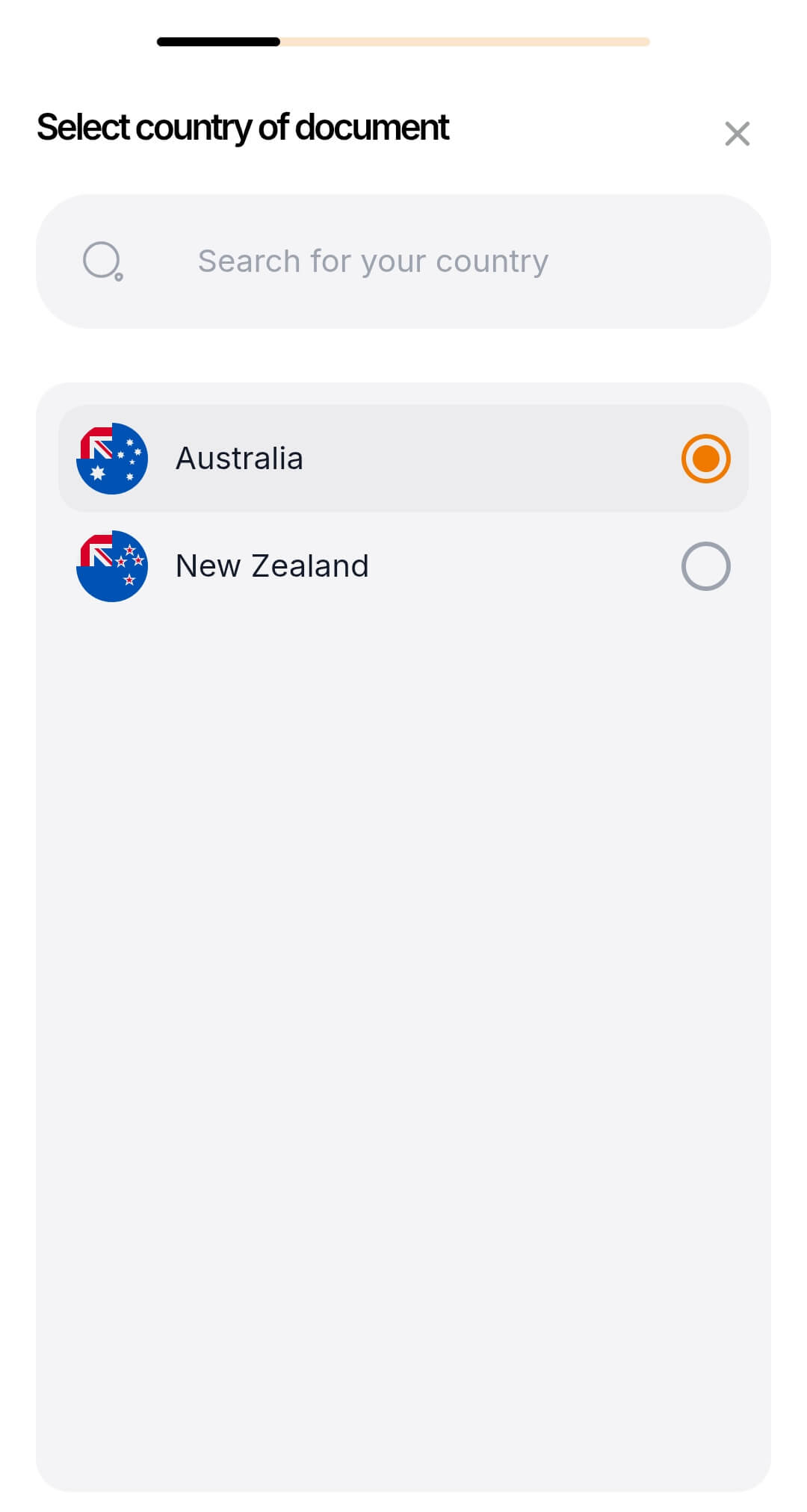
Select the issuing country or region.
 Open larger image
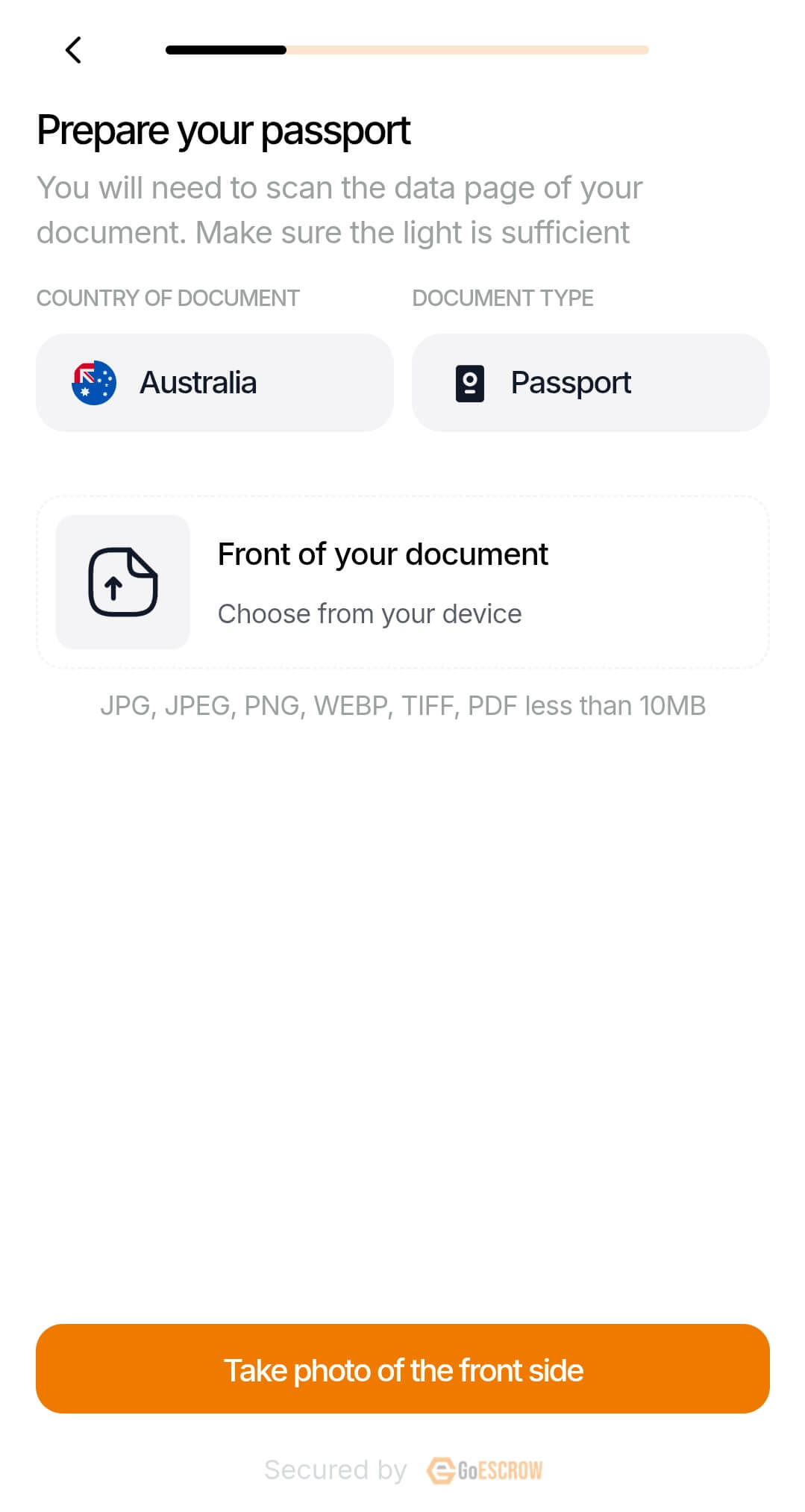
Step 4
Prepare the document. Follow the prompts for the required sides of a licence or passport data page.
 Open larger image
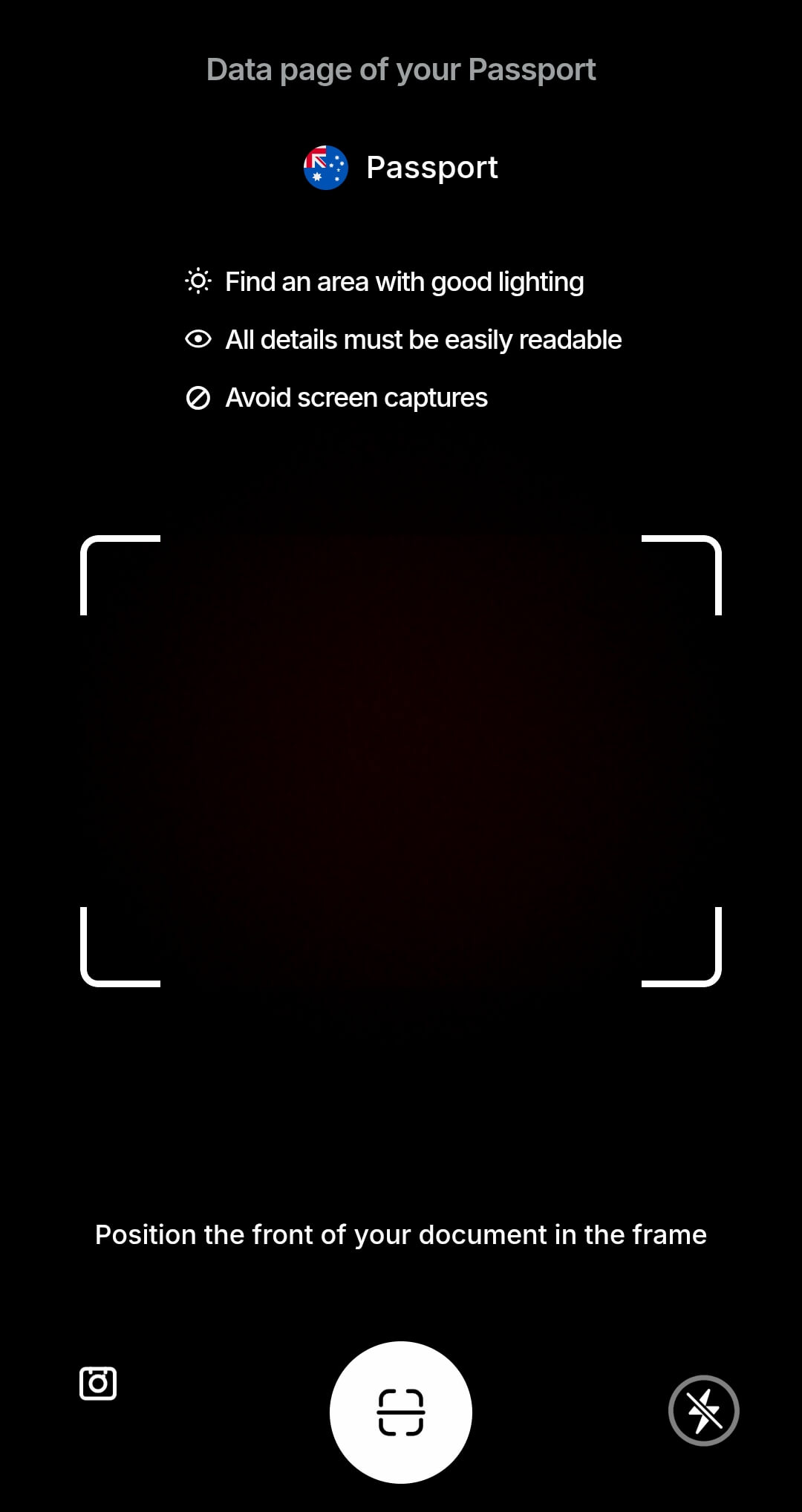
Step 5
Allow camera access when requested and capture a clear image of the document.
 Open larger image
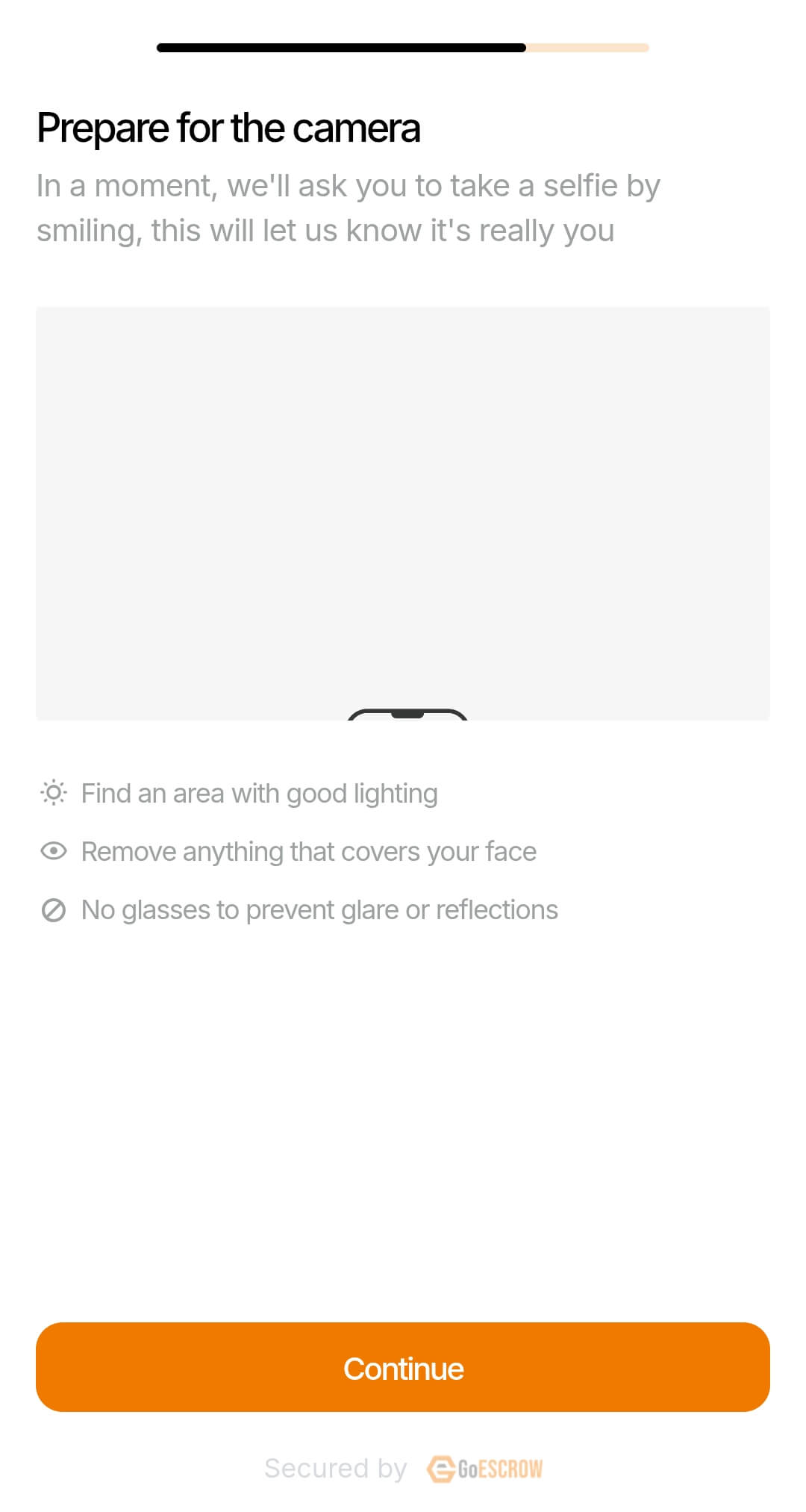
Step 6
Follow the selfie instructions. Remove sunglasses or other items obscuring your face.
 Open larger image
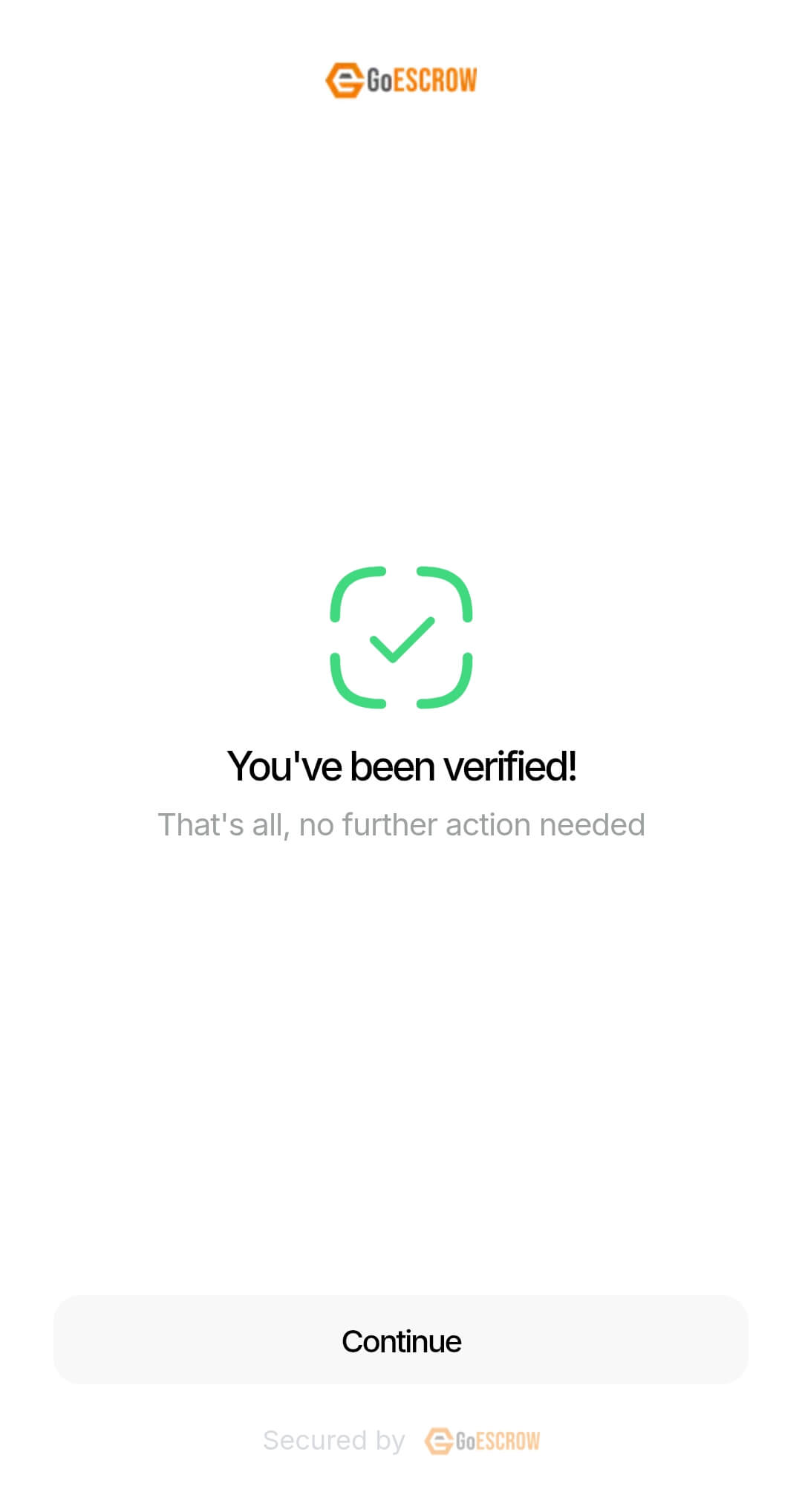
Step 7
Wait for the mobile verification service to confirm completion.
 Open larger image
Step 8
Return to GoEscrow and check the verification status.
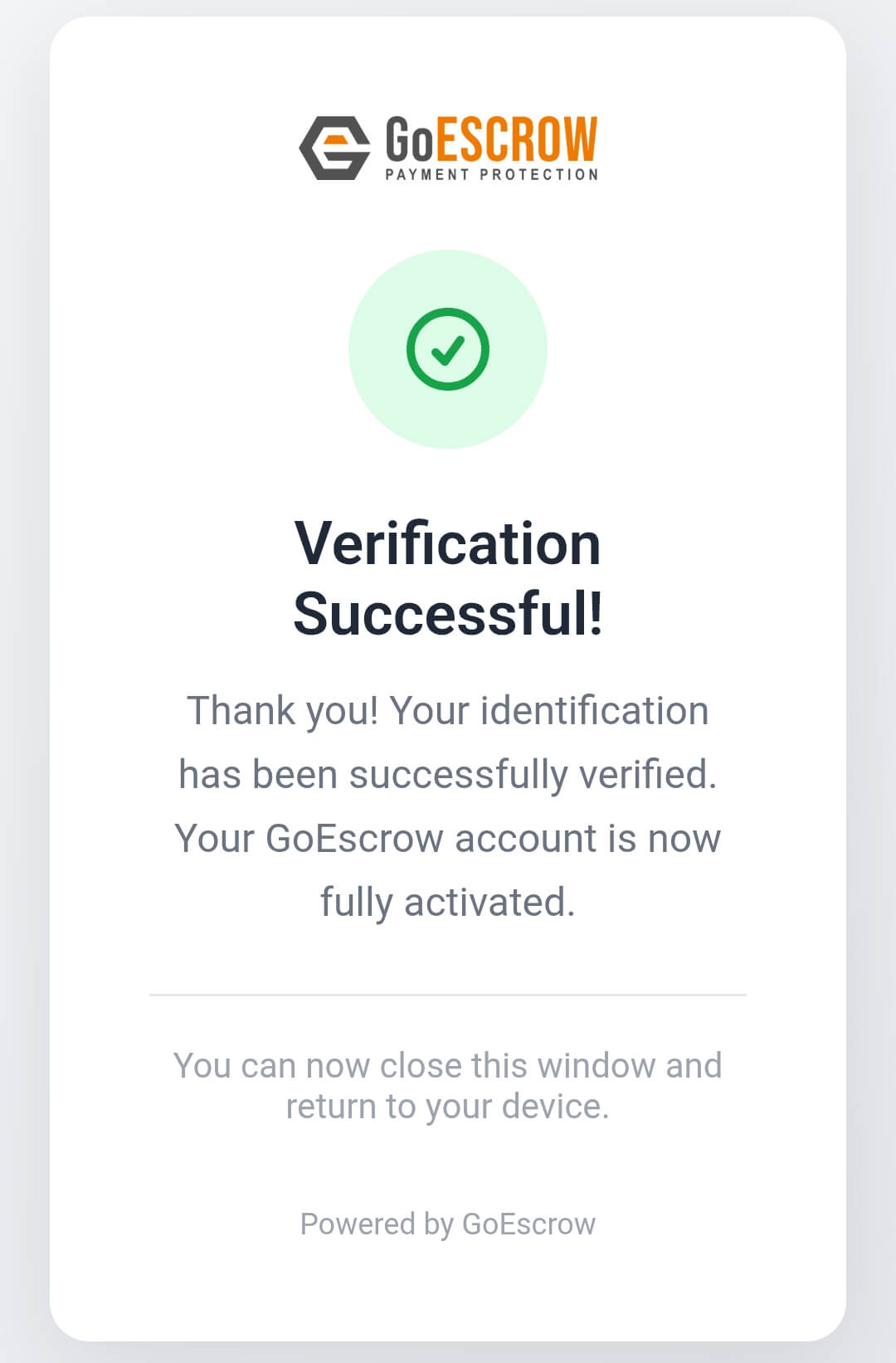 Open larger image
If verification cannot be completed
 If verification cannot be completed
Check camera permissions, lighting and document readability. Follow the displayed retry instructions or contact Customer Service if the problem persists. A completed scan does not override any further account verification requirements.